
Reader's guide
How to use the library
Step by step, with a picture of every screen — for readers, and for the grown-ups helping them.
Part 1
Joining the library
For parents and guardians. It takes a few minutes, and it is free.
Step 1: Fill in the joining form
Press “Ask for a library card” on the front page, or “How to join” in the menu. A parent or guardian fills the form in, not the child.
It asks for your child’s name and the year they were born, your flat, and your own name, email and phone. Nothing on it is shown to another family.
For grown-ups: Use an email address you check. The link to set your child’s password, and any password reset later, goes there.
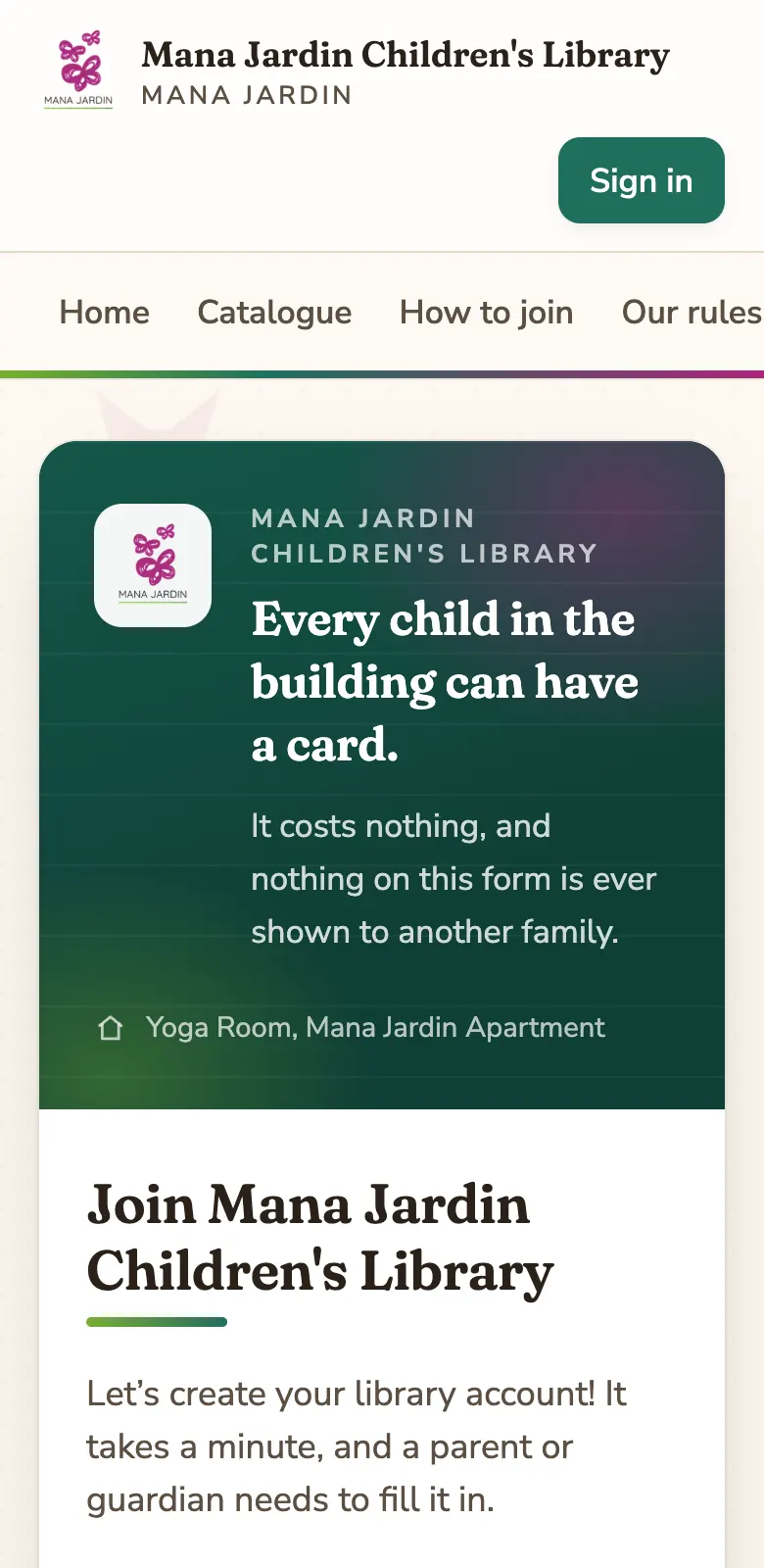
Step 2: A librarian checks it, then you choose a password
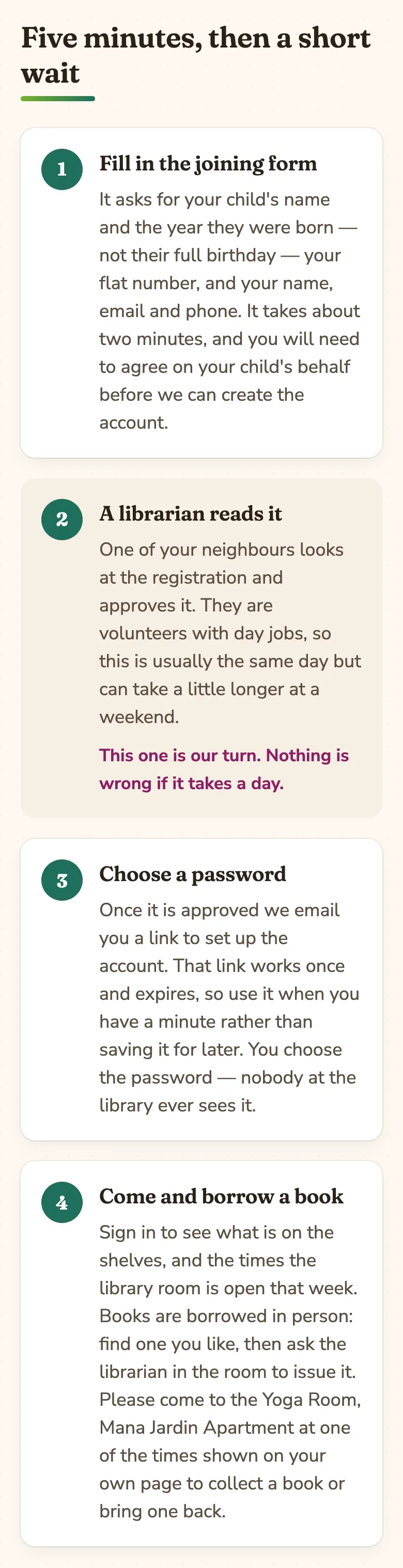
A librarian — a neighbour who volunteers — reads the form and approves it, usually the same day.
You then get an email with a link. Open it, choose a password for your child, and the card is ready. The link works once, so use it when you have a minute.
Part 2
Signing in
Readers sign in with the number on their library card.
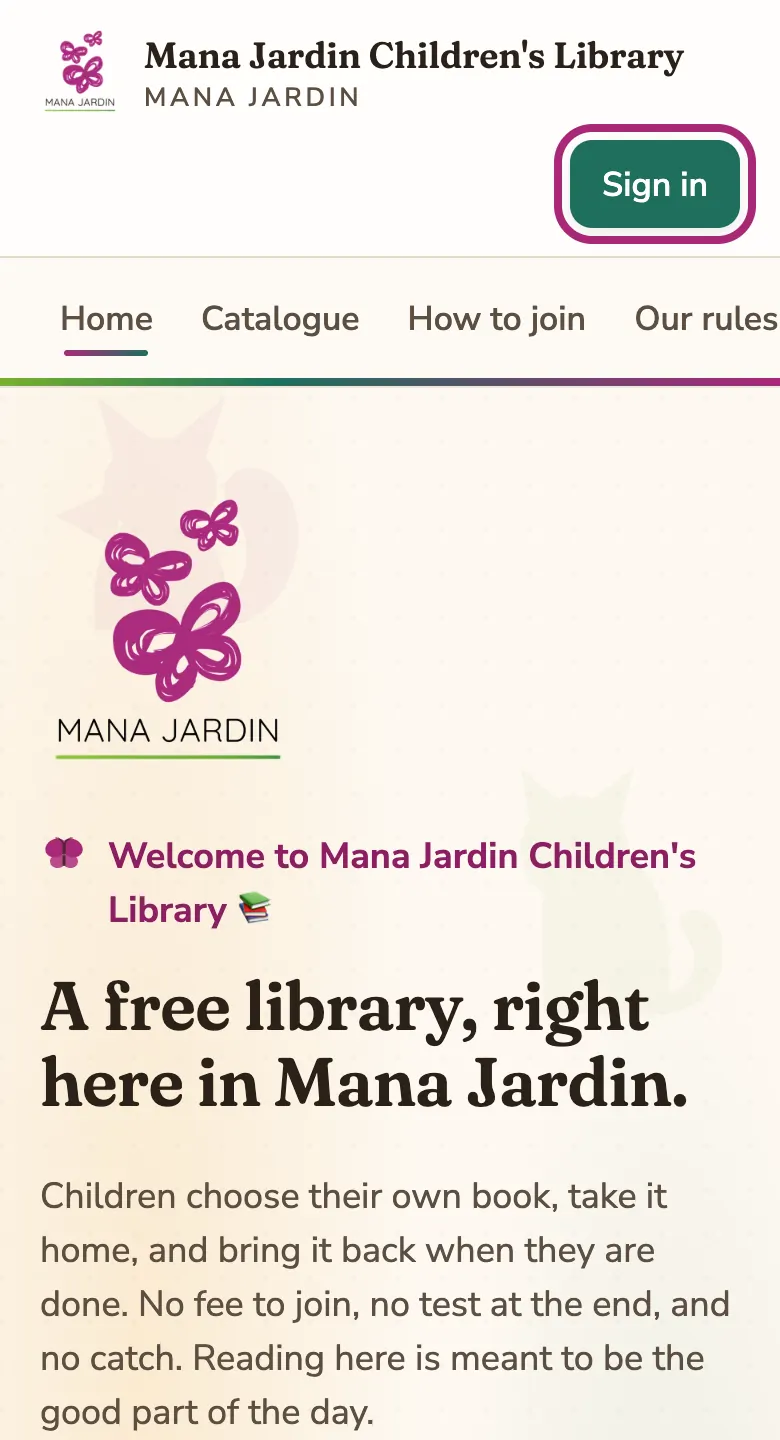
Step 3: Press “Sign in”
It is at the top of every page, on the right.
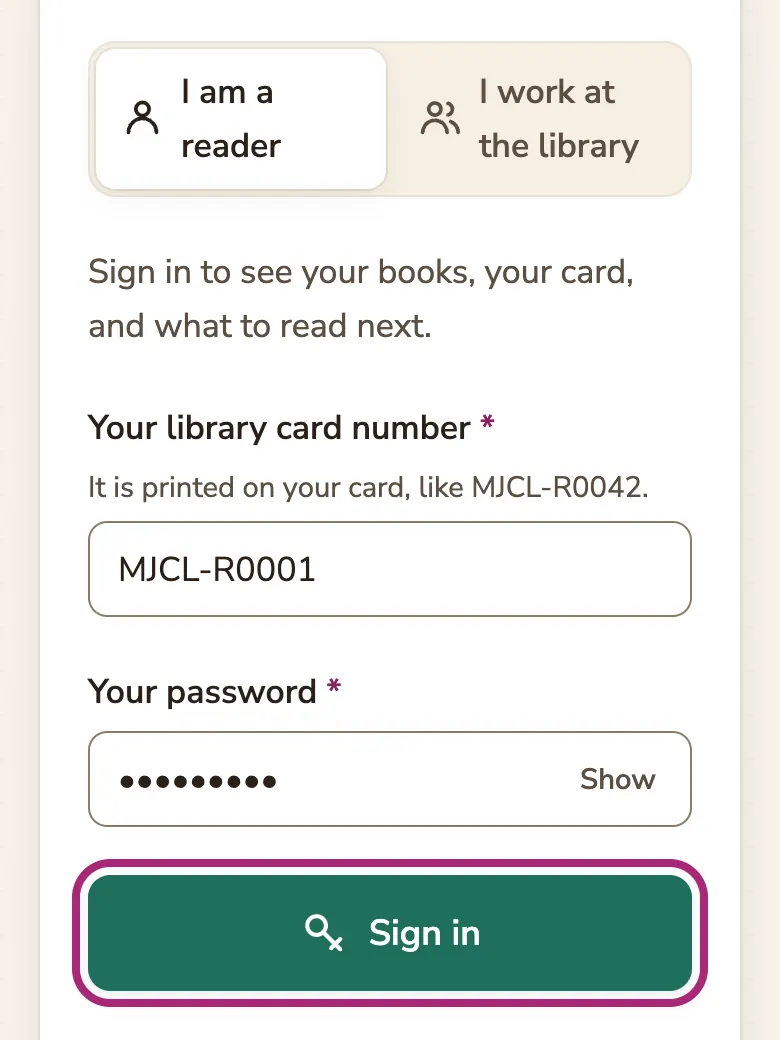
Step 4: Type your card number and password
- Choose “I am a reader”.
- Type your library card number, for example MJCL-R0042.
- Type your password. “Show” lets you check what you typed.
- Press “Sign in”.
For grown-ups: If a wrong password is typed several times in a row, the card is paused for a short while to keep it safe. Wait fifteen minutes, or use “Forgotten your password?” below.
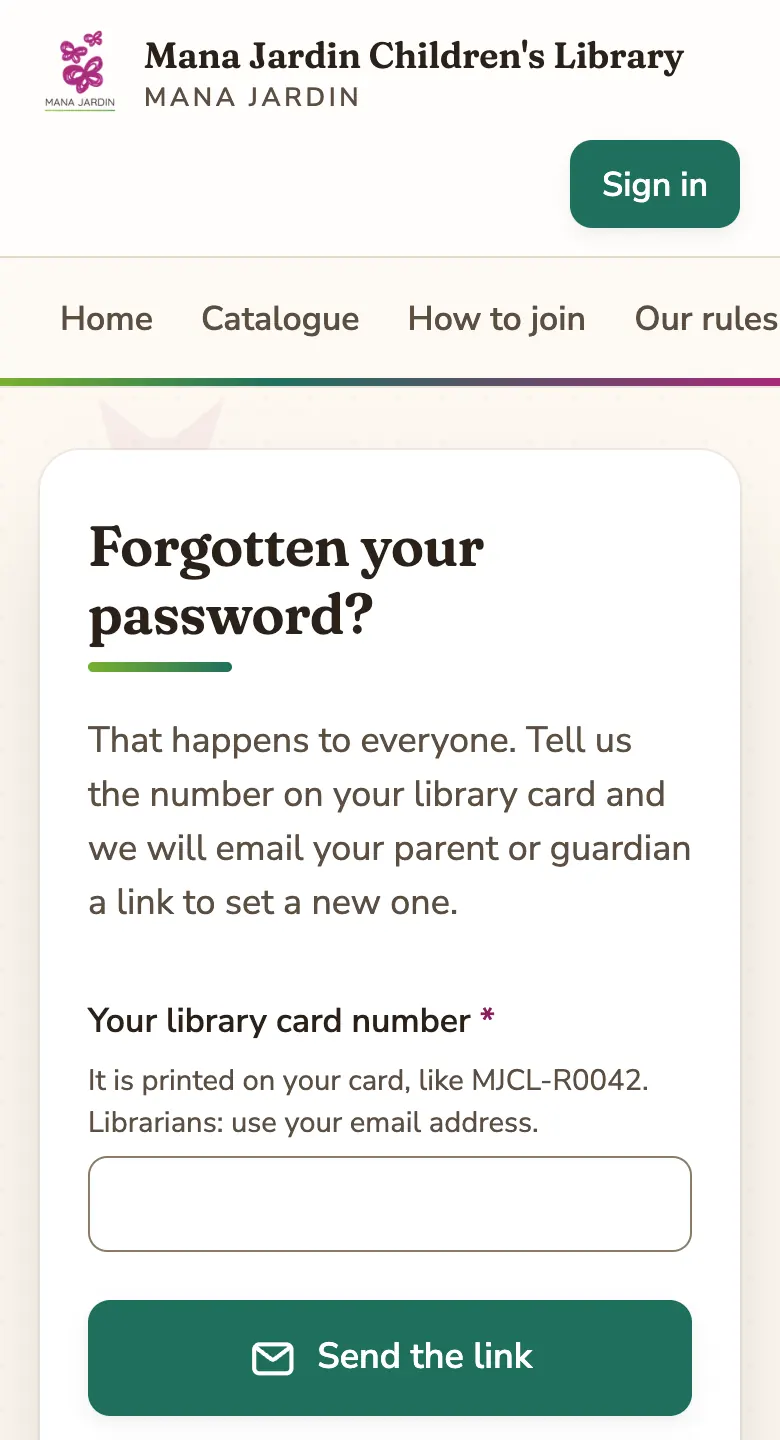
Step 5: Forgotten your password?
Press “Forgotten your password?” on the sign-in page and type your card number. A link to choose a new password goes to the parent or guardian’s email — never to anyone else.
Nobody at the library can see your password, so nobody can tell it to you. The link is the way back in.
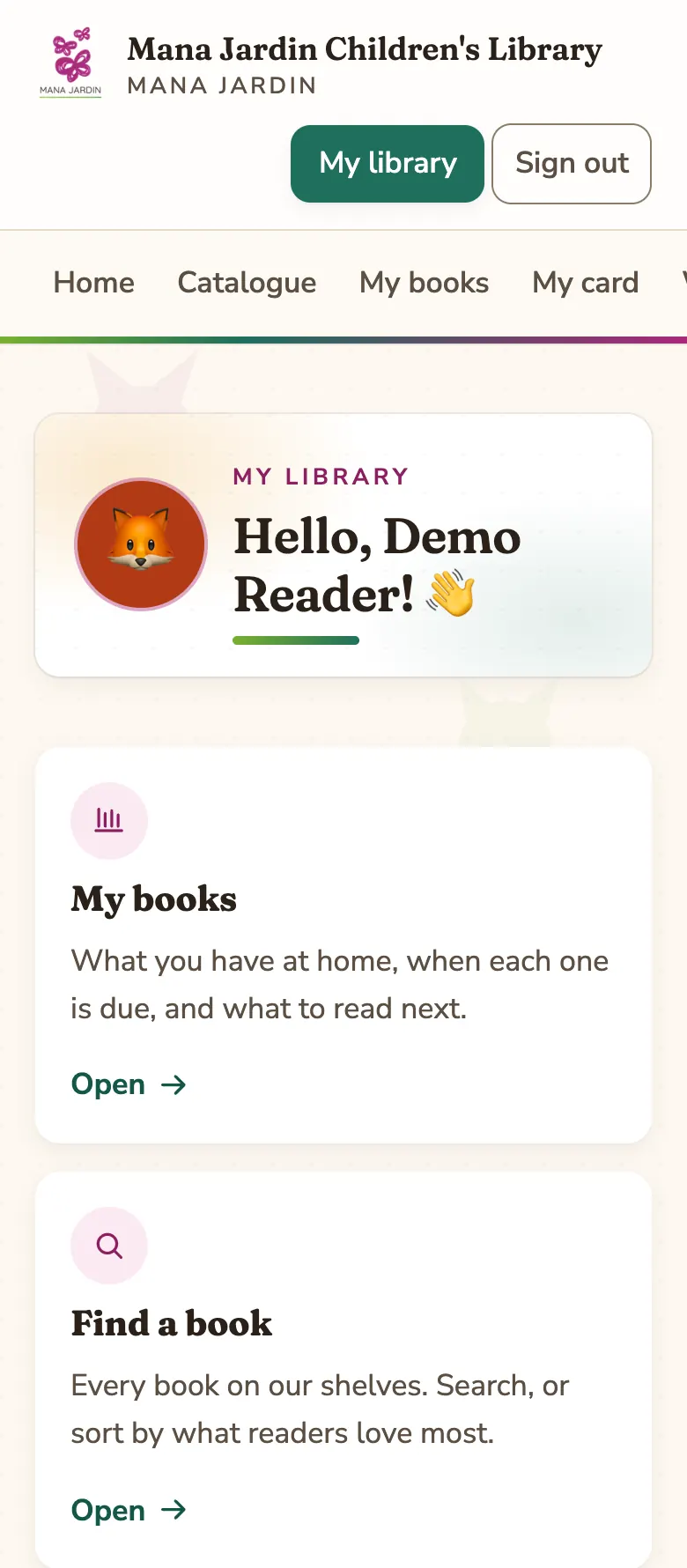
Step 6: Your own page
After signing in you land on your own page. It has four doors: My books, Find a book, My library card, and Account details.
Part 3
Finding a book
Anyone can look through the catalogue, even without signing in.
Step 7: Search the catalogue
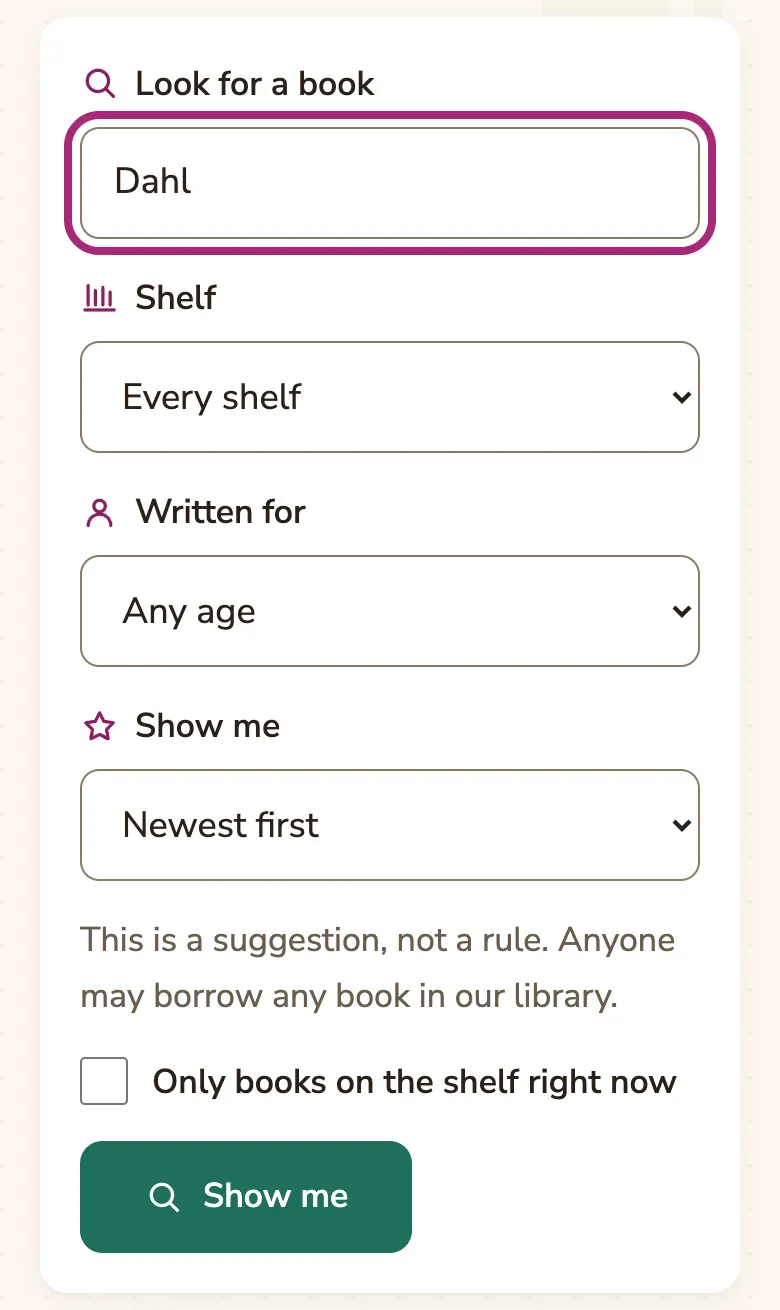
Open “Catalogue” in the menu. Type part of a title or the name of the person who wrote it, then press “Show me”.
You can also pick a shelf, the ages a book was written for, and whether to see the newest, best loved or most borrowed first. The ages are a suggestion — anyone may borrow any book.
- Tick “Only books on the shelf right now” to see just the books you could take home this week.
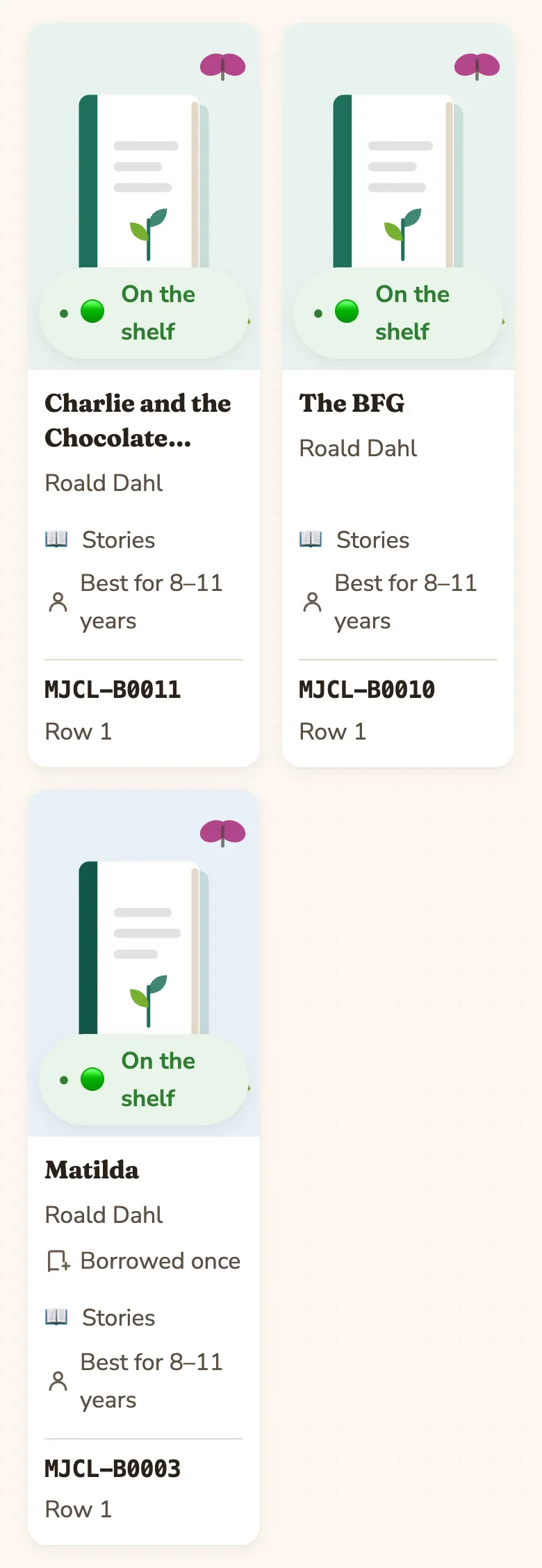
Step 8: Pick a book
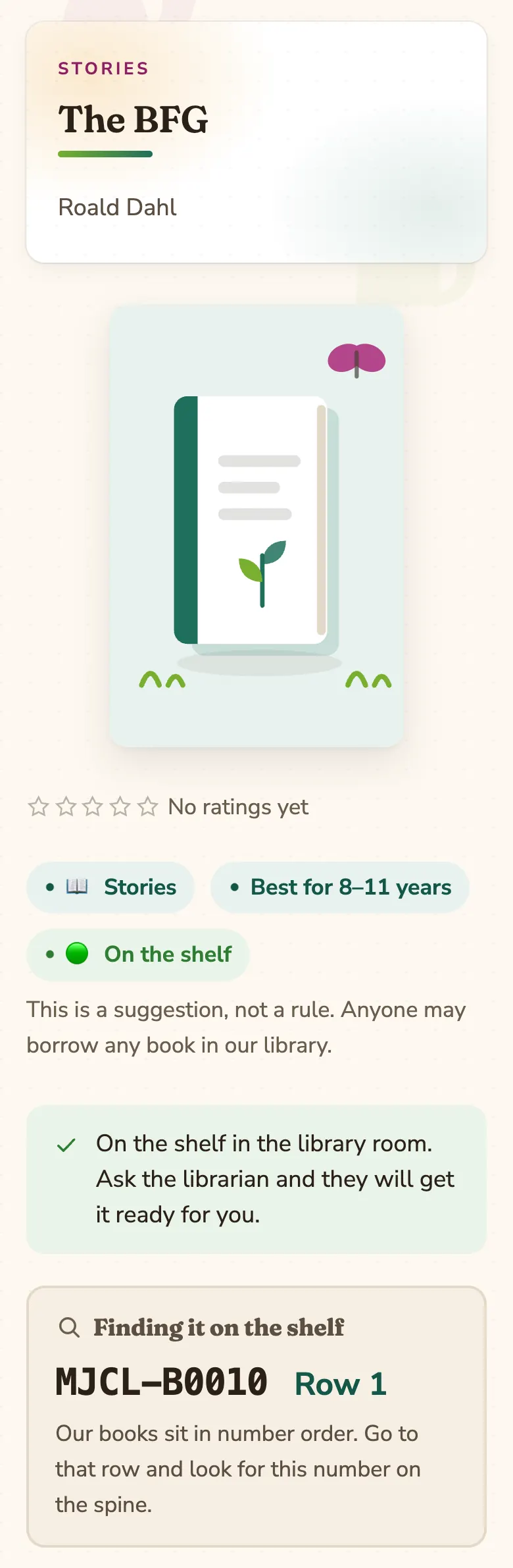
Each card shows the cover, who wrote it, and a green “On the shelf” when it is in the library room. At the bottom is the book’s number and which row it sits on. Press a card to open the book.
Step 9: The book’s own page
This page tells you whether the book is on the shelf, what age it is written for, and what other readers thought of it.
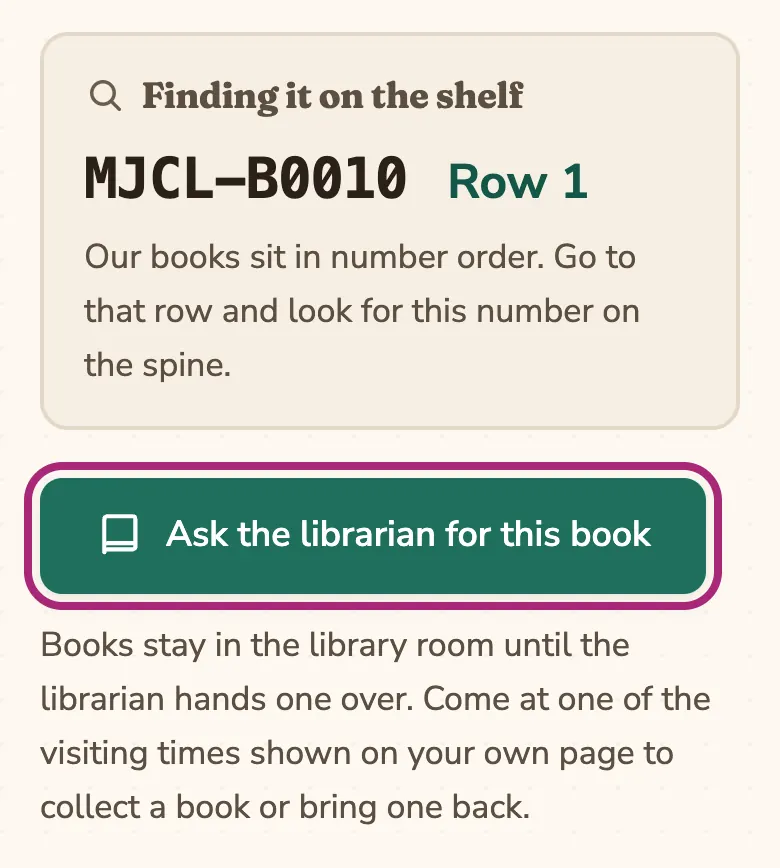
The box “Finding it on the shelf” gives the number printed on the book’s spine and the row it is on. Our books sit in number order, so you can walk straight to it in the library room.
Further down you will find other books by the same author, and more books from the same shelf.
Part 4
Borrowing a book
You can have 2 books at a time, for 14 days each.
Step 10: Ask the librarian for it
On the book’s page, press “Ask the librarian for this book”. You need to be signed in, and the book needs to be on the shelf.
Step 11: Wait for the librarian
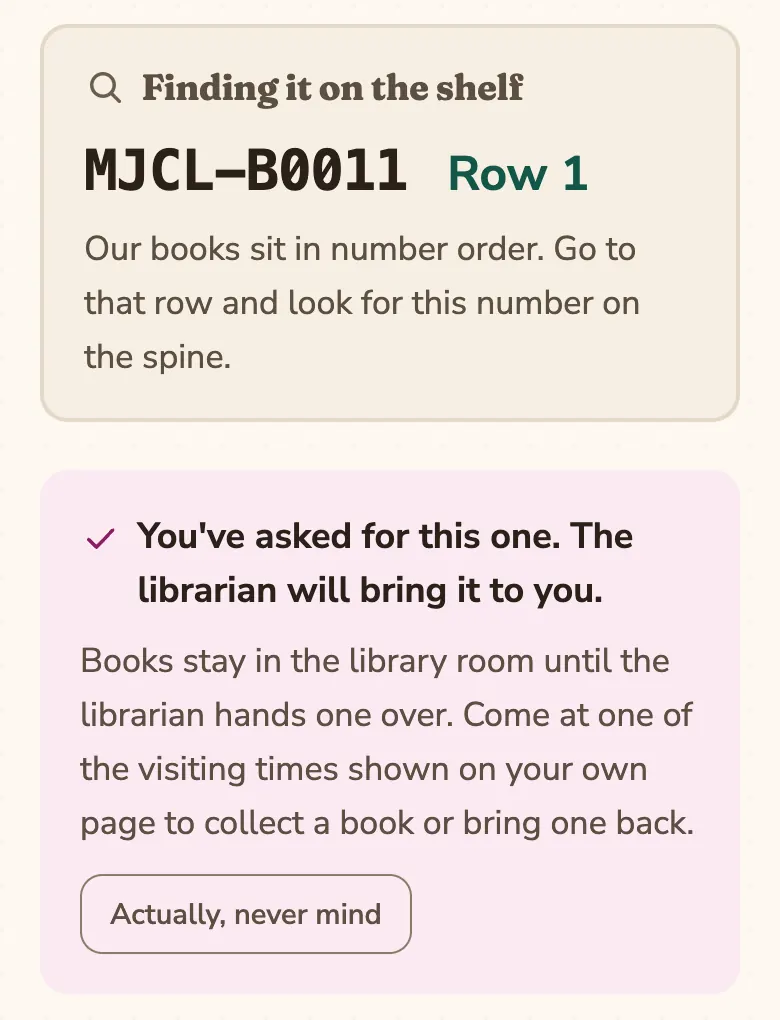
The page now says you have asked for it. The book stays in the library room until the librarian hands it to you — asking on the website keeps it for you, it does not send it anywhere.
Changed your mind? Press “Actually, never mind” and the book is free for someone else.
Step 12: See it on My books
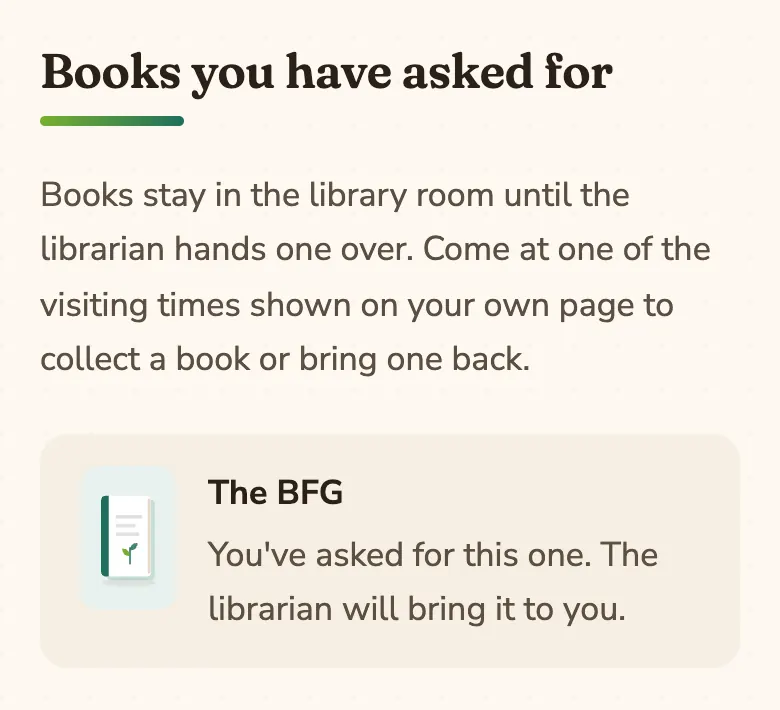
Everything you have asked for is listed on “My books”, under “Books you have asked for”.
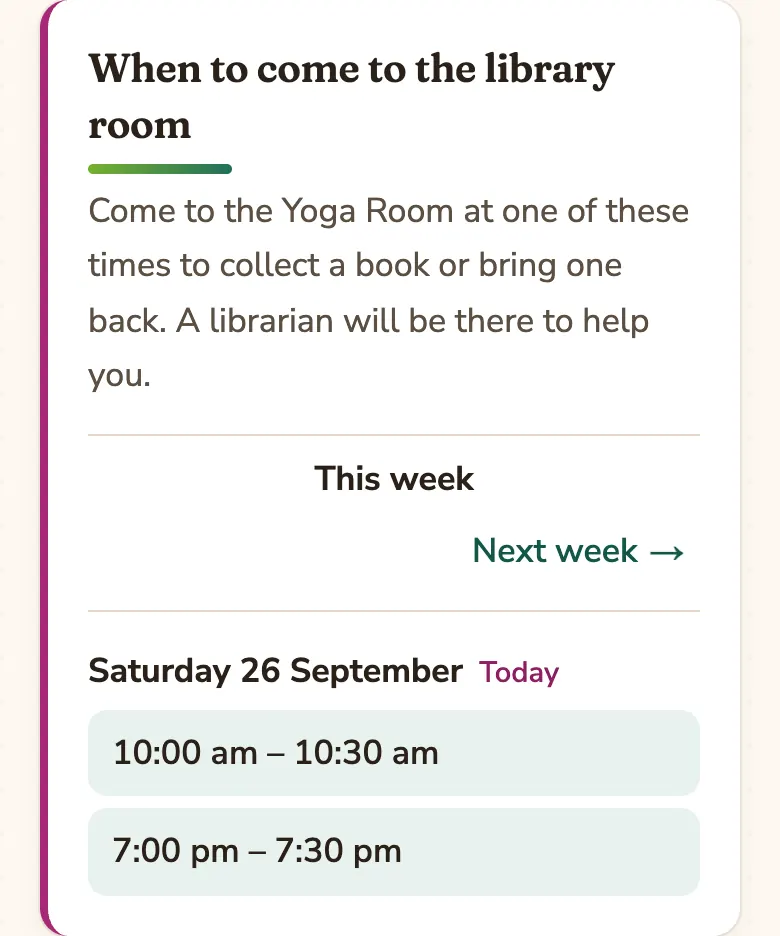
Step 13: Collect it from the Yoga Room
Come to the Yoga Room at one of the visiting times on your “My books” page. A librarian will be there to hand the book over, and to take back any you are returning.
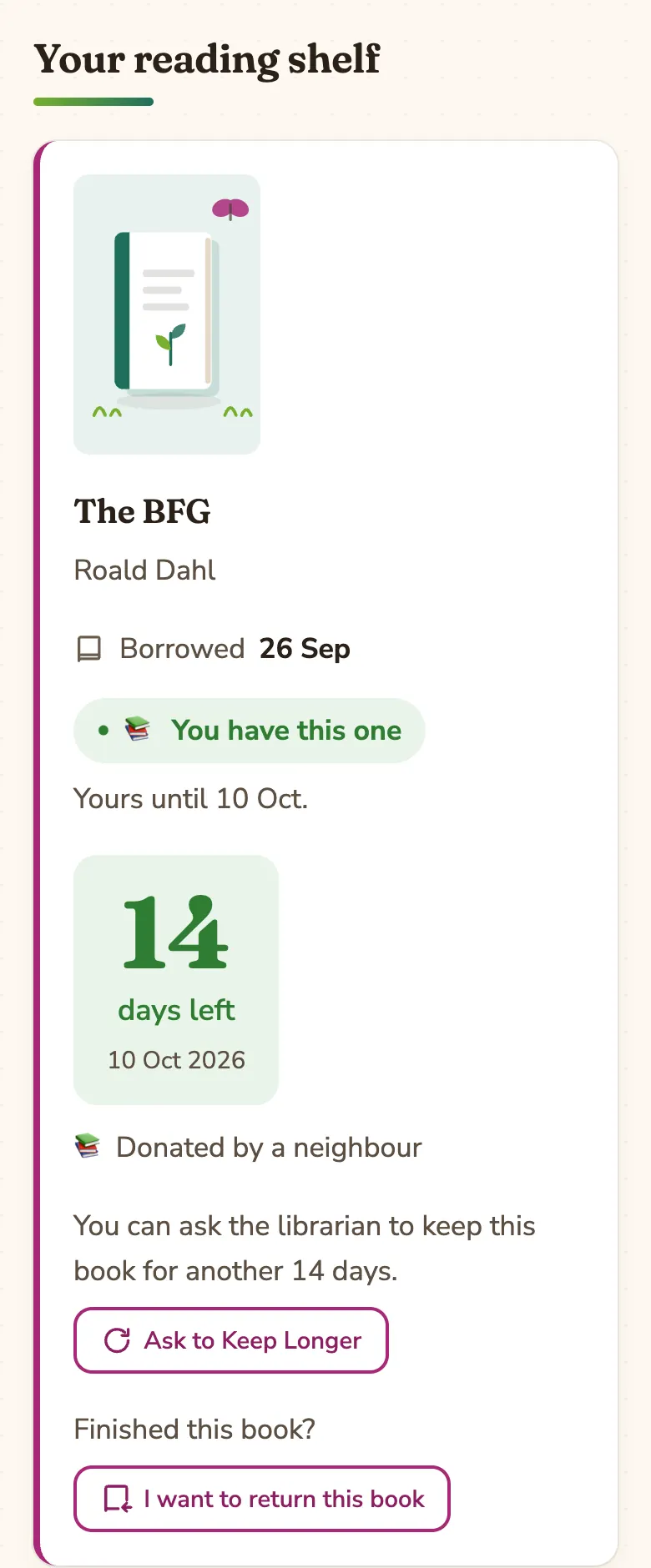
Step 14: Your book at home
Once the librarian hands the book over, it appears under “Your reading shelf” on My books, with a big number showing how many days are left and the date it is due back.
Part 5
Keeping it longer, and bringing it back
Both happen from your “My books” page.
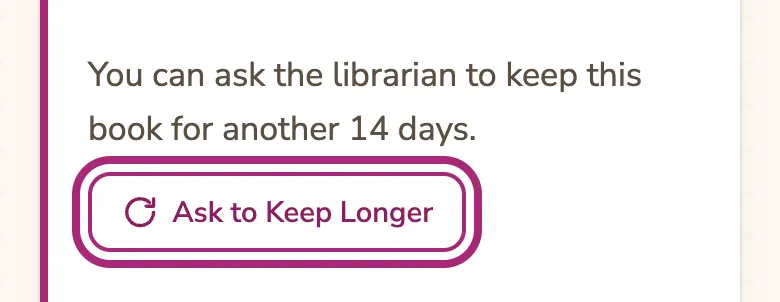
Step 15: Need more time? Ask to keep it longer
Under the book, press “Ask to Keep Longer”. The librarian will look at it and, if they say yes, you get another 14 days.
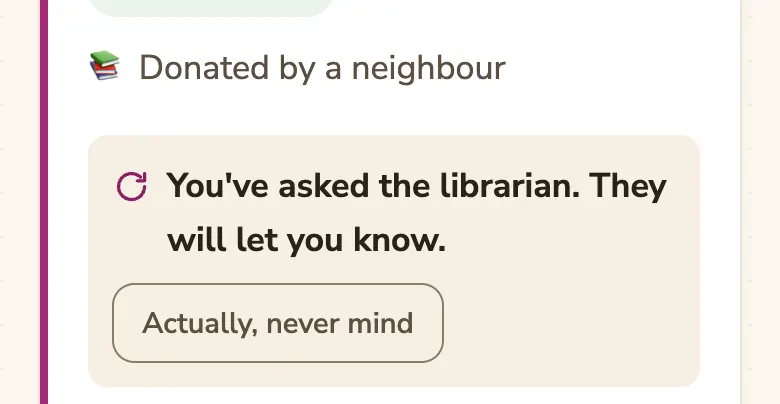
Step 16: The librarian will let you know
The book now says you have asked. If you finish it sooner after all, press “Actually, never mind”.
Step 17: Finished it? Tell the library
Press “I want to return this book”. This tells the librarian it is coming back, so they can look out for it.
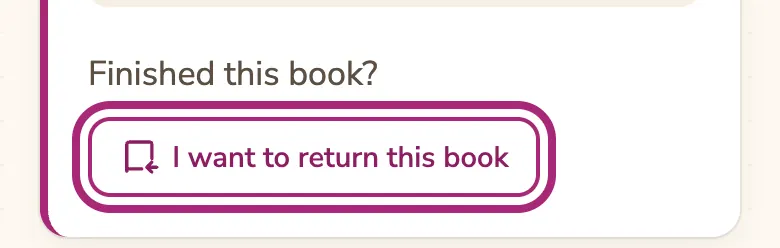
Step 18: Then bring the book to the library room
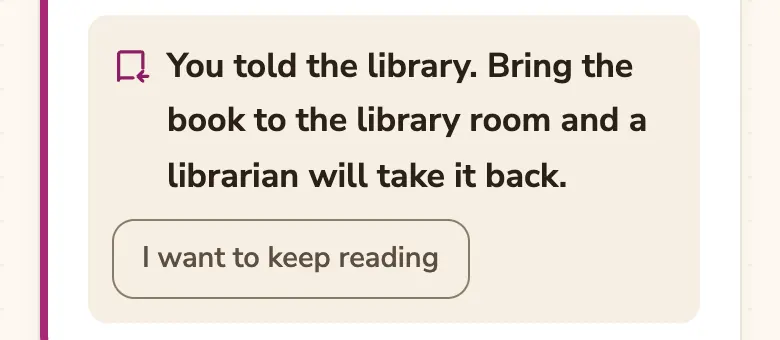
Bring it to the Yoga Room at a visiting time and hand it to the librarian. The book leaves your shelf when the librarian takes it back — pressing the button alone does not return it.
Still reading after all? Press “I want to keep reading”.
For grown-ups: If a book gets lost or damaged, just tell the librarian.
Part 6
More on your My books page
Your page is where the library talks to you.
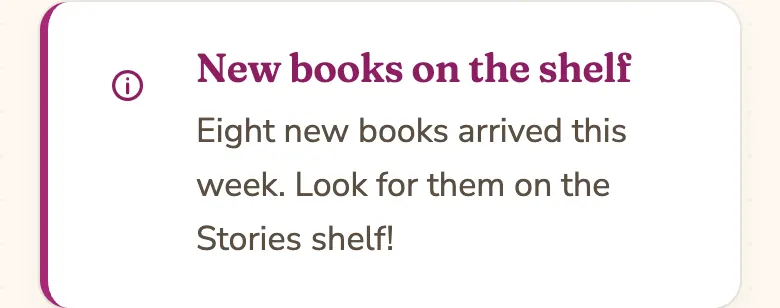
Step 19: The notice board
At the top of My books. Anything the library wants every reader to know — new books, a change of time — is posted here.
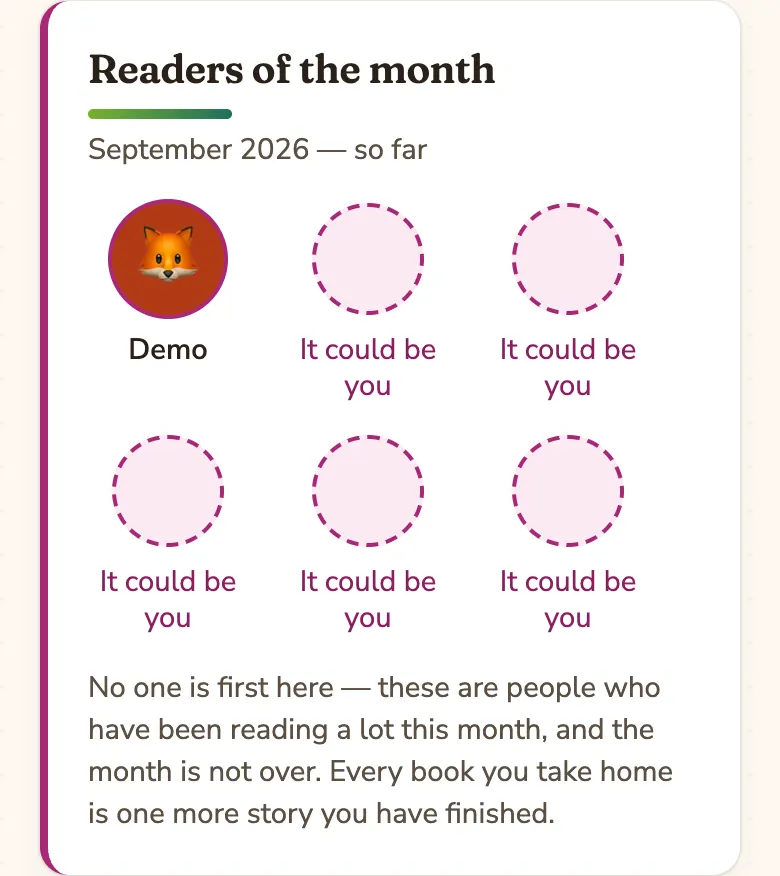
Step 20: Readers of the month
The readers who have taken the most books home this month, shown by first name and picture. It is a celebration, not a race — every book you finish counts.
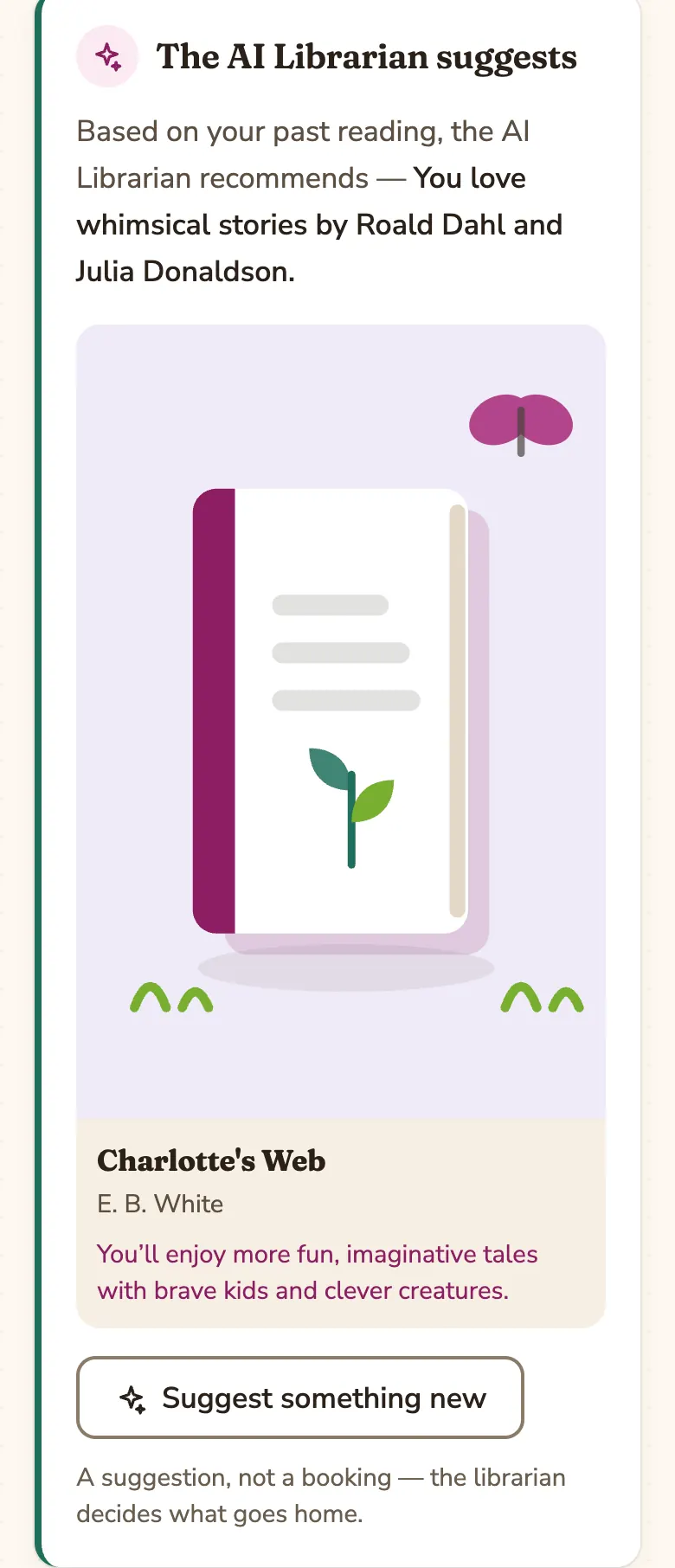
Step 21: What to read next
After you have borrowed a couple of books, the AI Librarian suggests three more from our own shelves that you might like. Press “Suggest something new” for a fresh set.
A suggestion is not a booking — you still ask for the book in the usual way.
Part 7
Asking the AI Librarian about a book
On every book’s page, below the book’s details.
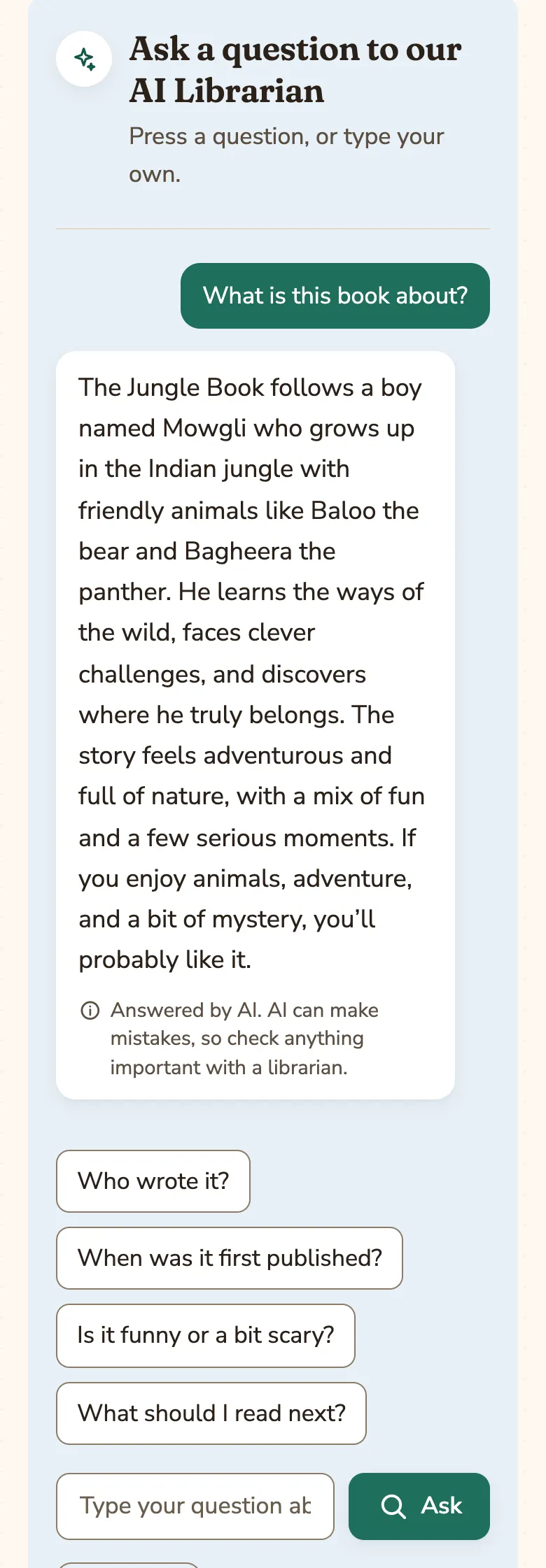
Step 22: Press a question, or type your own
Press “What is this book about?”, “Who wrote it?”, “Is it funny or a bit scary?” and more — or type your own question about the book and press “Ask”.
Answers are written for the age the book is meant for.
For grown-ups: The AI Librarian answers questions about the book. Nothing a child types is kept, and no name or card number is sent with it. Answers come from AI, which can make mistakes, so check anything important with a librarian.
Part 8
Giving a book stars
Once you have borrowed and brought back a book, you can say what you thought.
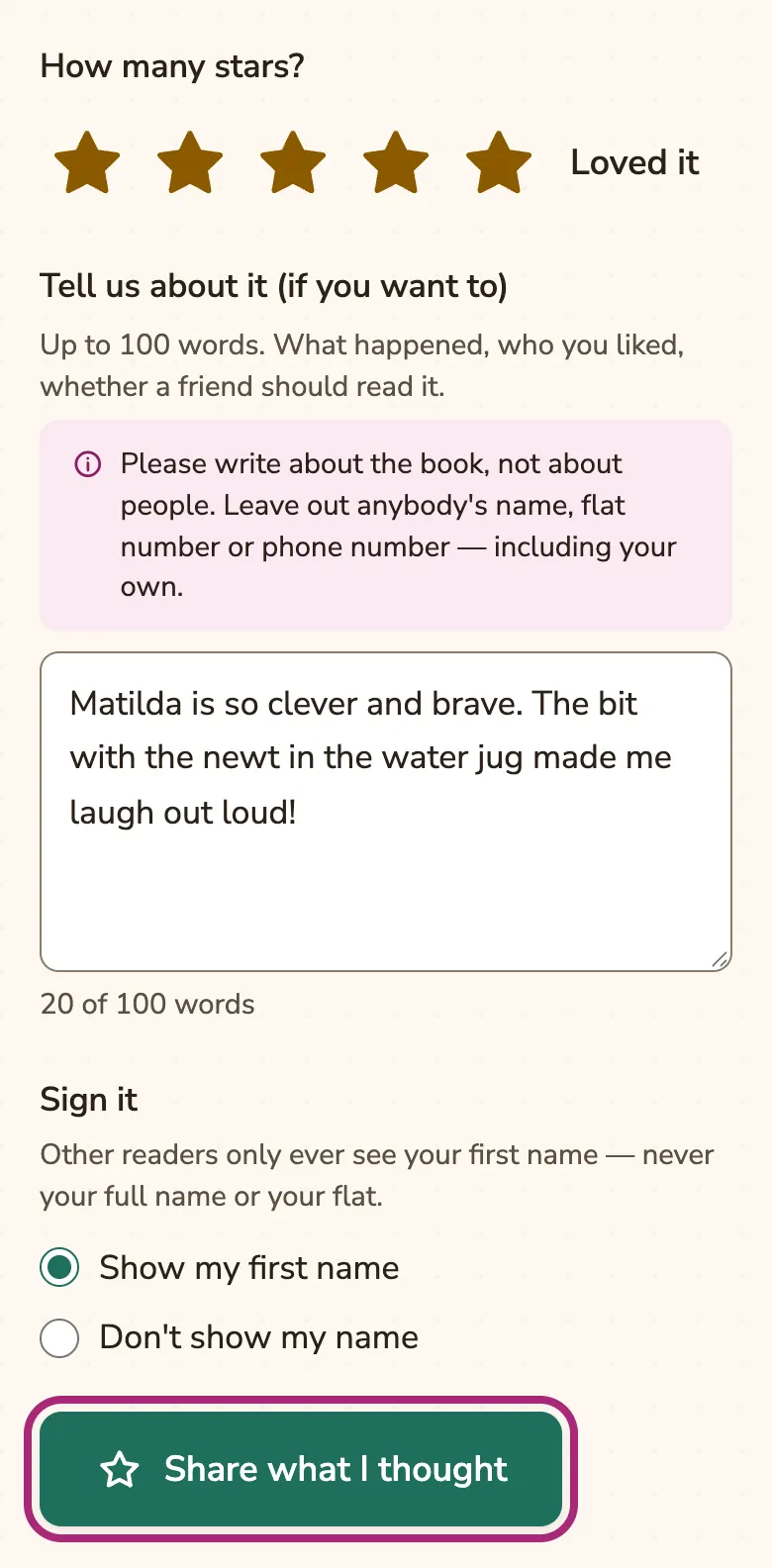
Step 23: Pick your stars and say why
- Open the book’s page. Under “What did you think?”, press one to five stars.
- If you like, write a few lines about the book — up to a hundred words. Write about the book, not about people.
- Choose “Show my first name” or “Don’t show my name”.
- Press “Share what I thought”.
For grown-ups: A librarian reads every review before anyone else can see it. Other readers only ever see a first name — never a full name or flat.
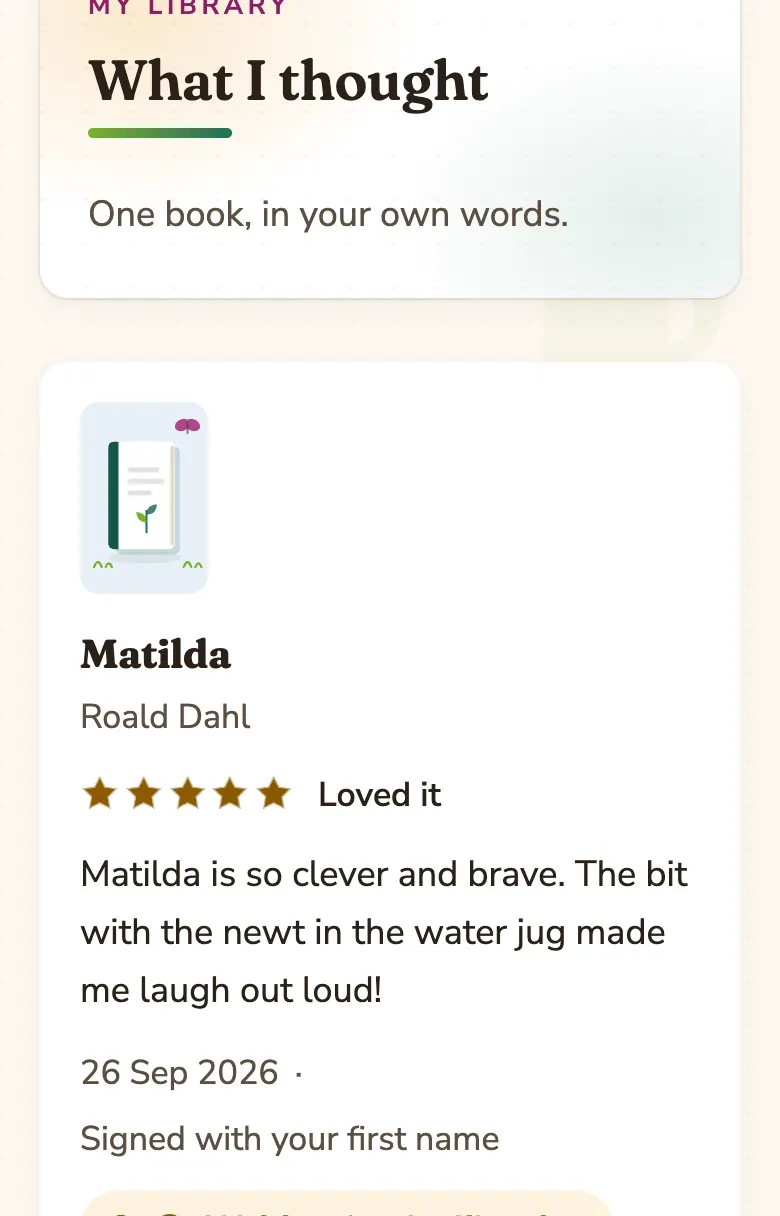
Step 24: Everything you have said
“What I thought” in the menu keeps every review you have written.
Part 9
Your library card
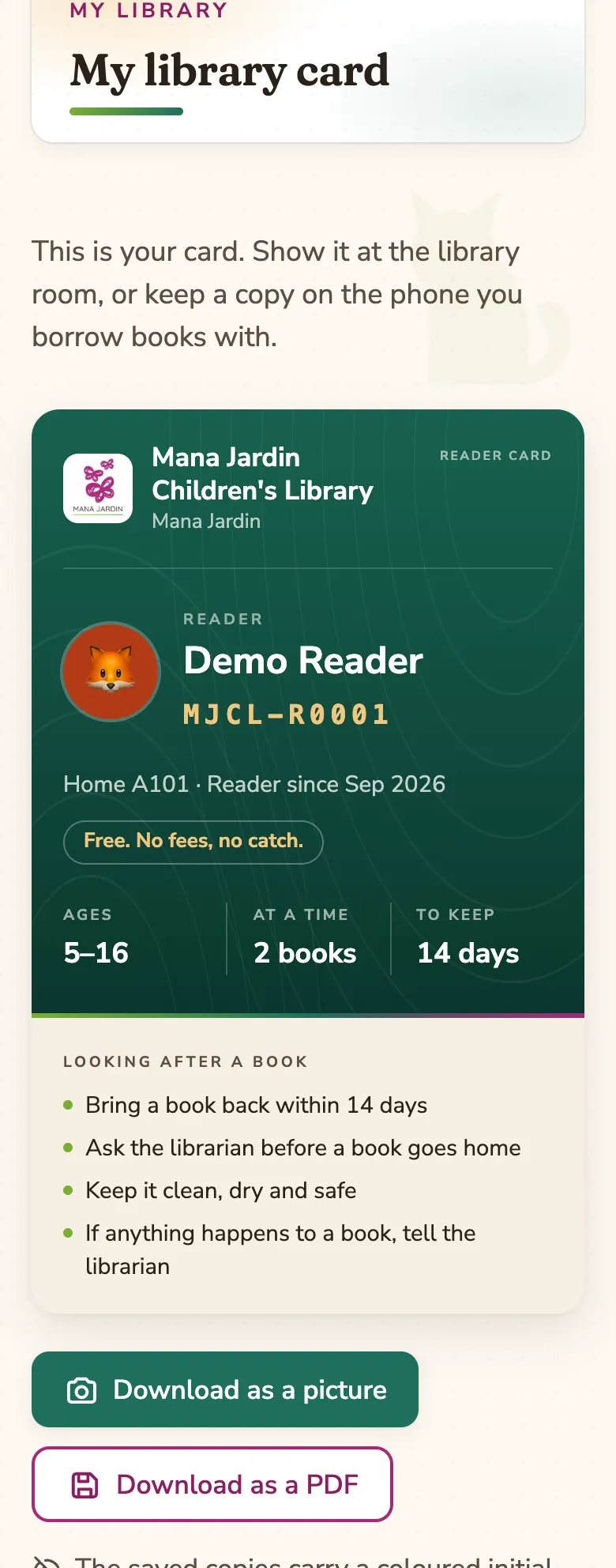
Open “My card” in the menu.
Step 25: Show it, or keep a copy
Your card shows your name and card number. Show it in the library room, or save a copy with “Download as a picture” or “Download as a PDF”.
For grown-ups: The saved copies show a coloured initial instead of your child’s photograph, so a forwarded card says less about them.
Part 10
Your details and password
Open “My library”, then “Account details”.
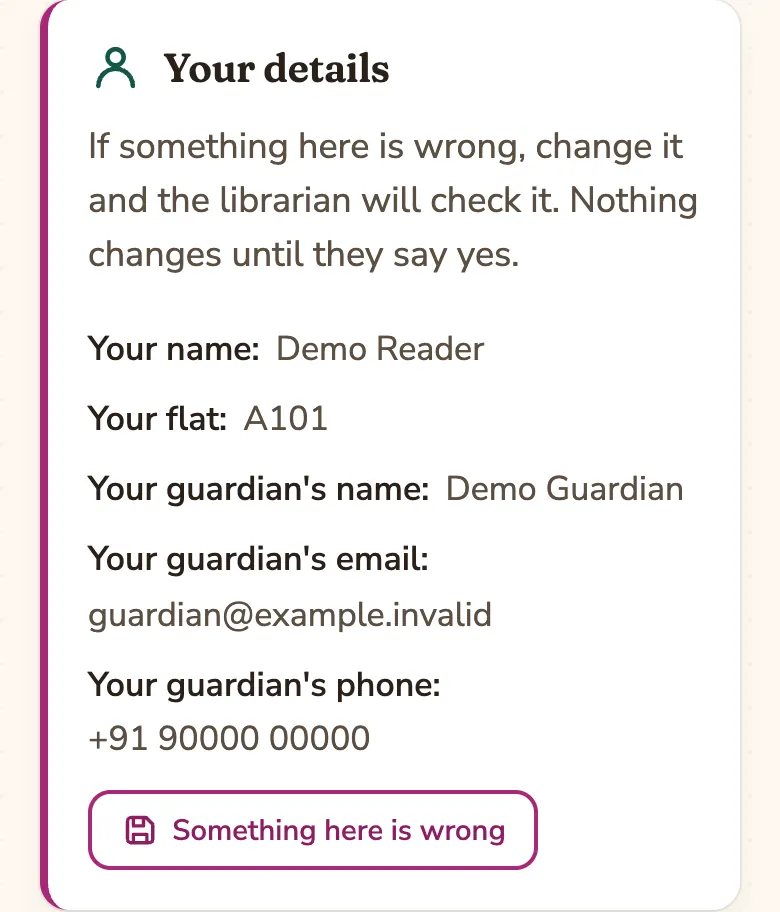
Step 26: Something wrong in your details?
Your name, flat and your guardian’s details are listed here. Press “Something here is wrong” to send a correction — a librarian checks it before anything changes.
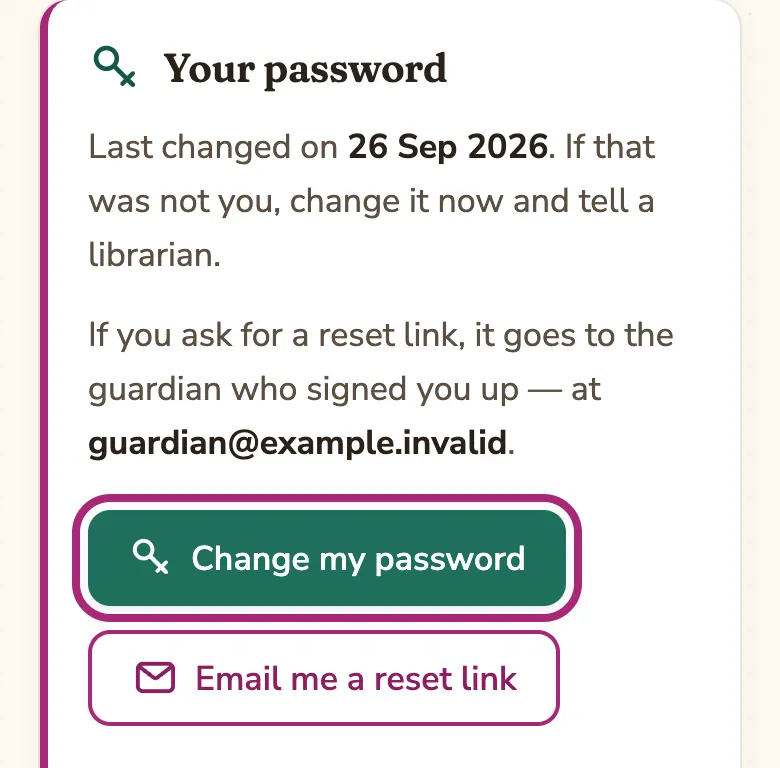
Step 27: Change your password
Under “Your password”, press “Change my password”. If you have forgotten it, “Email me a reset link” sends a link to your guardian instead.
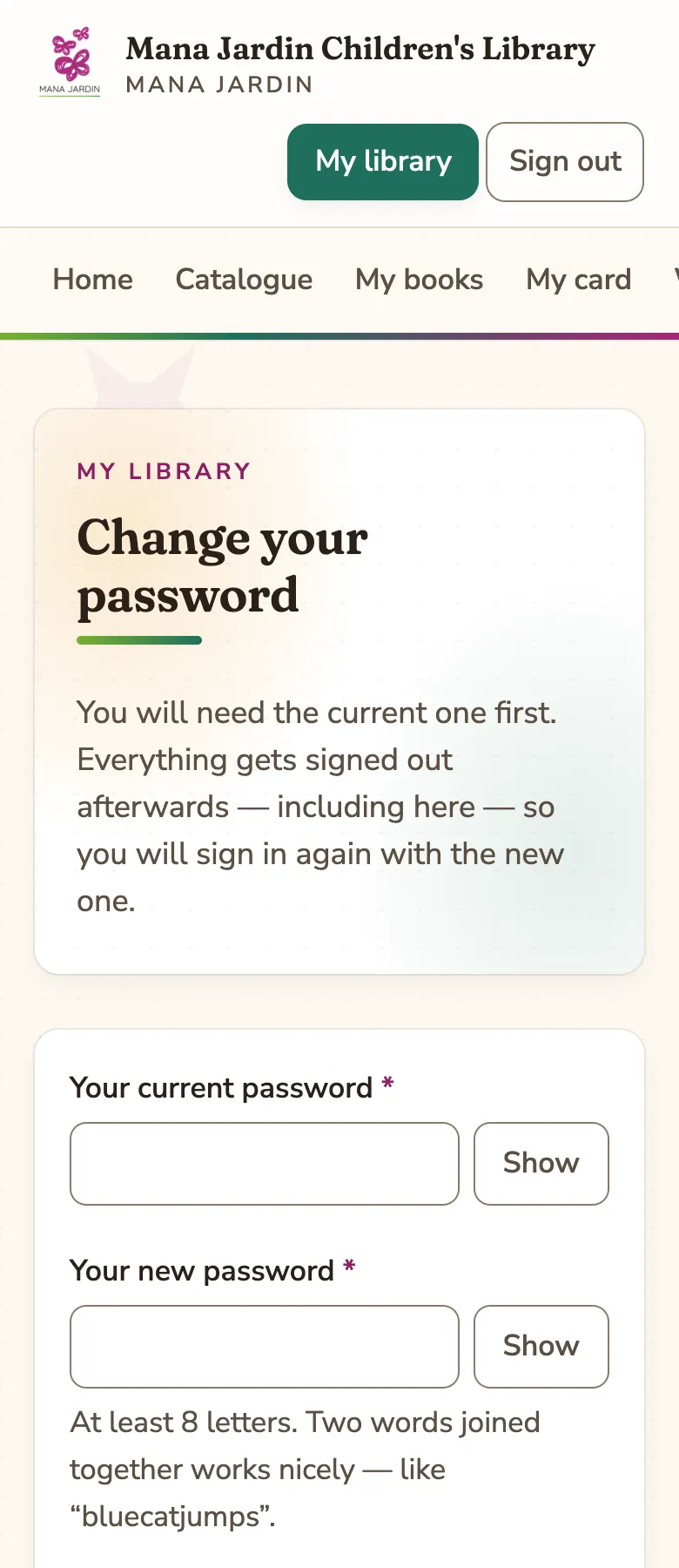
Step 28: Type the old password, then the new one
A good password is two or three words joined together, like “bluecatjumps” — easy to remember, hard to guess.
Changing it signs you out everywhere, including here, so sign in again with the new one.
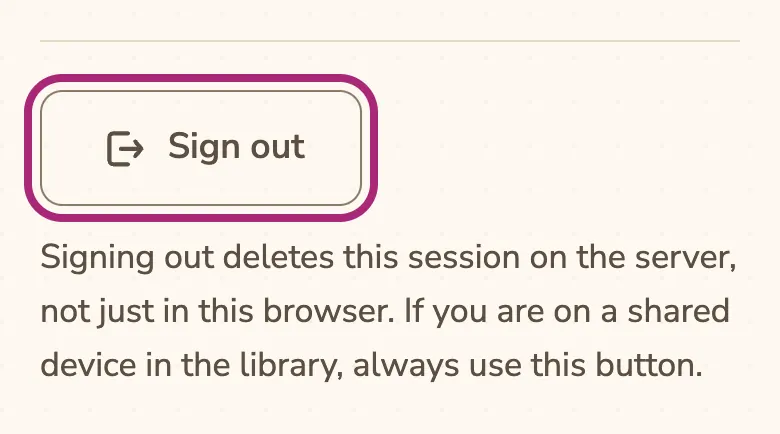
Step 29: Sign out on a shared phone or computer
At the bottom of Account details, press “Sign out”. Always do this on a device other people use.
Part 11
Giving books to the library
Every book on our shelves came from a neighbour.
Step 30: Bring them to the librarian
Bring books you would like to give to the Yoga Room at a visiting time, and hand them to the librarian. Tell them how you would like to be thanked — by name, or not at all.
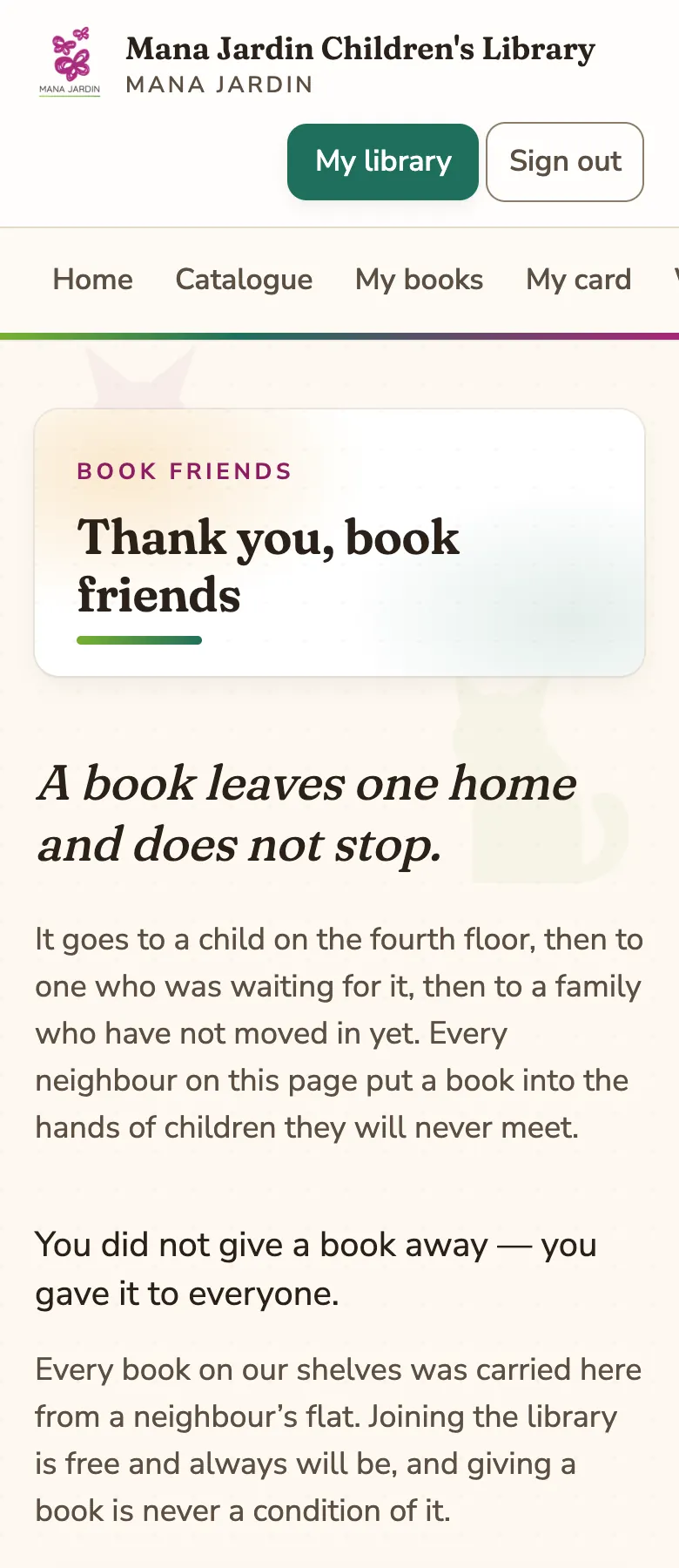
Everyone who gives is thanked on the “Book friends” page. Giving a book is never a condition of joining.
Still stuck?
Ask the librarian at the next visiting time, or read the questions families ask — or write to jardin.owners@gmail.com.